Firstly check for the printer Ip address. For that :
1.Turn off the printer and long press the feed button in the printer and turn on the printer simultaneously.
2. You will get a bill from the printer where there is ip address printer
Now login in to admin.hungry4food.com
Go to store info section >Kitchen type setup>there you will see this type of interface
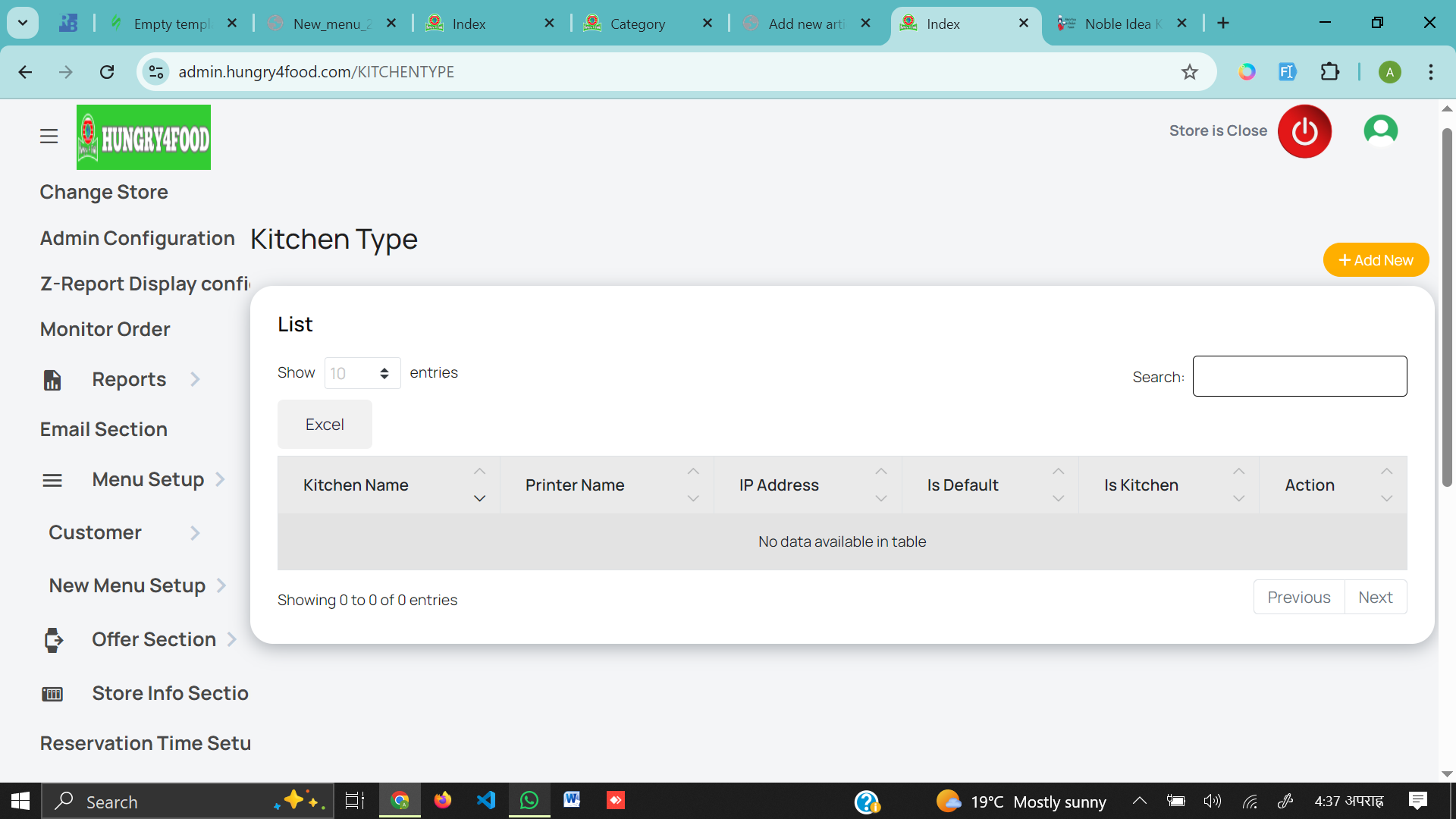
Printer setup for kitchen type ( from here you can setup printer for kitchen places and receipt or any other particular place )
1. At the right top side you will see Add new button click it
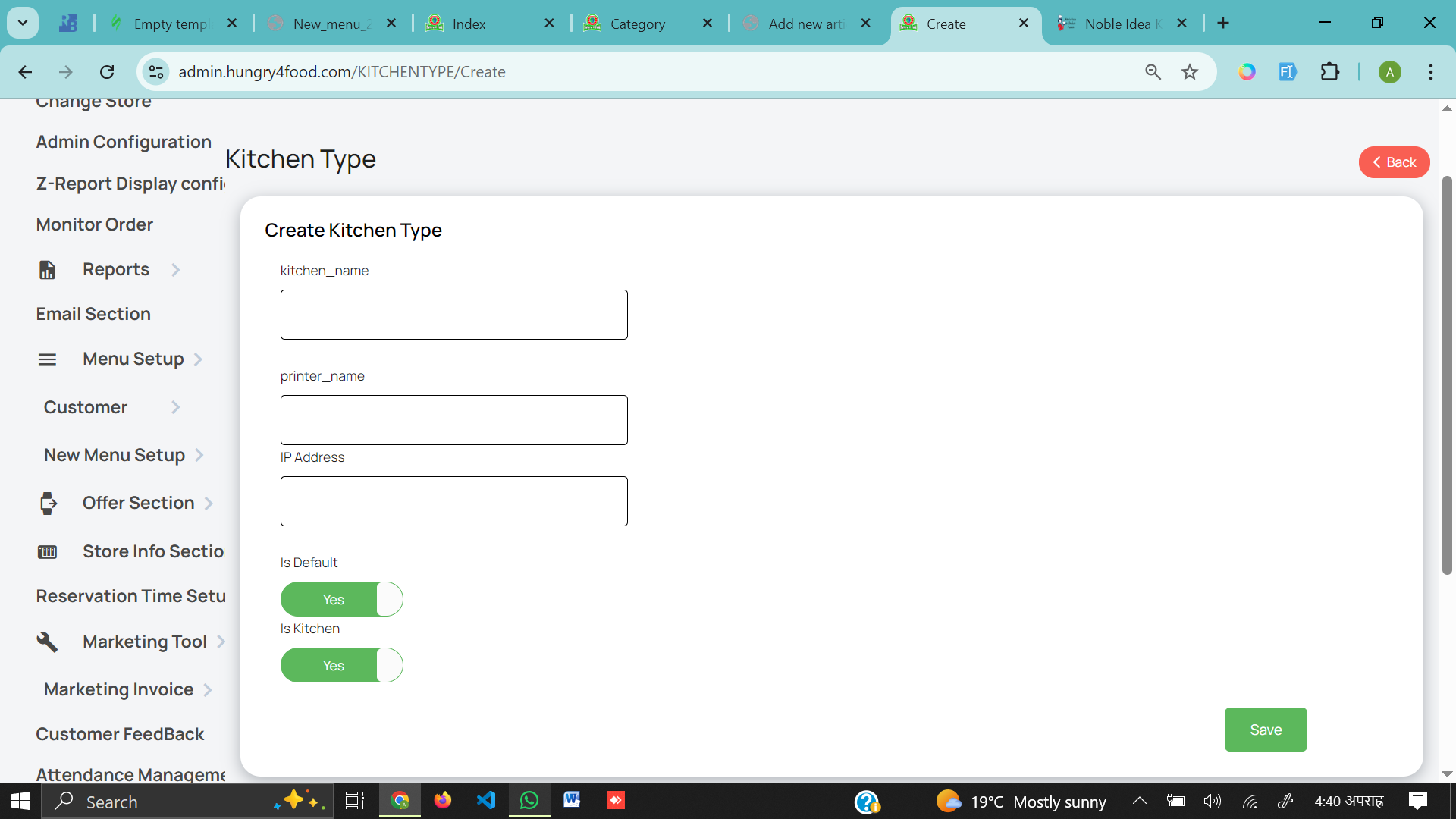
2. Add the kitchen name and printer name as KITCHEN >Add the Ip address that you have already from the printer at first > only Activate Is kitchen >Save ( Congrats you just created the printer setup for kitchen )
3.If you want to setup printer for receipt side also then follow the same process and just make sure to put "Receipt" in both kitchen and printer name and put IP Address that you get form the receipt side printer.
How to check the printer we have setup is working or not if someone order for the particular item
1.Go to New menu setup > main item setup >Choose the category name that we wanna print if someone order from the website >Edit
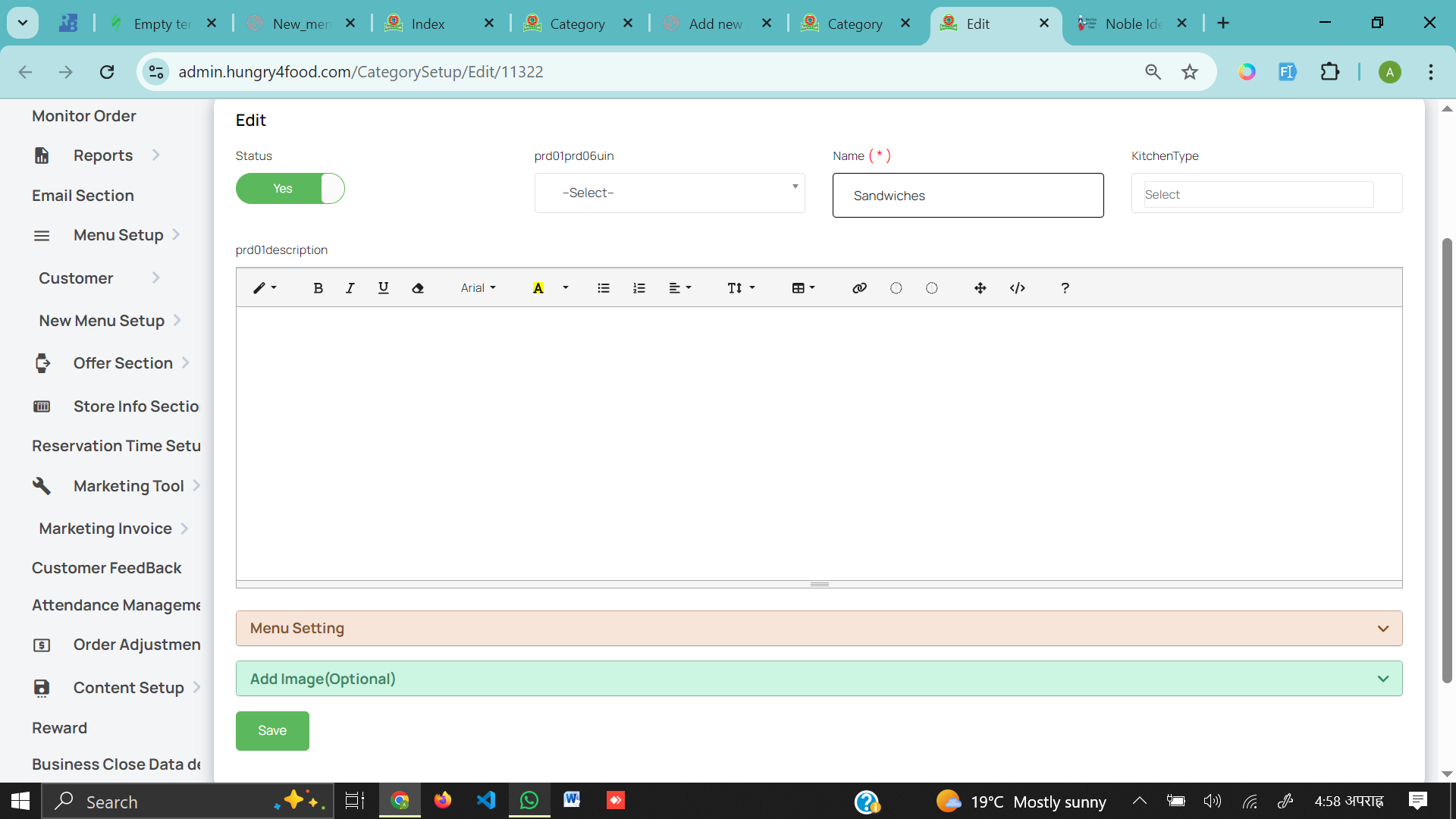
2. Select the kitchen type (like where the order that is placed in the website will go to ) > Means To the Kitchen or the Receipt. > Save
Now the things that we have to do in admin panel is finished so Go to website Test.hungry4food.com to check actually that printer we have setup worked or not.
1.Go to order online and select the main item where we have setup the printer type .
2. Add to cart and checkout as guest .(Note order below $10 cannot be checkout for delivery )
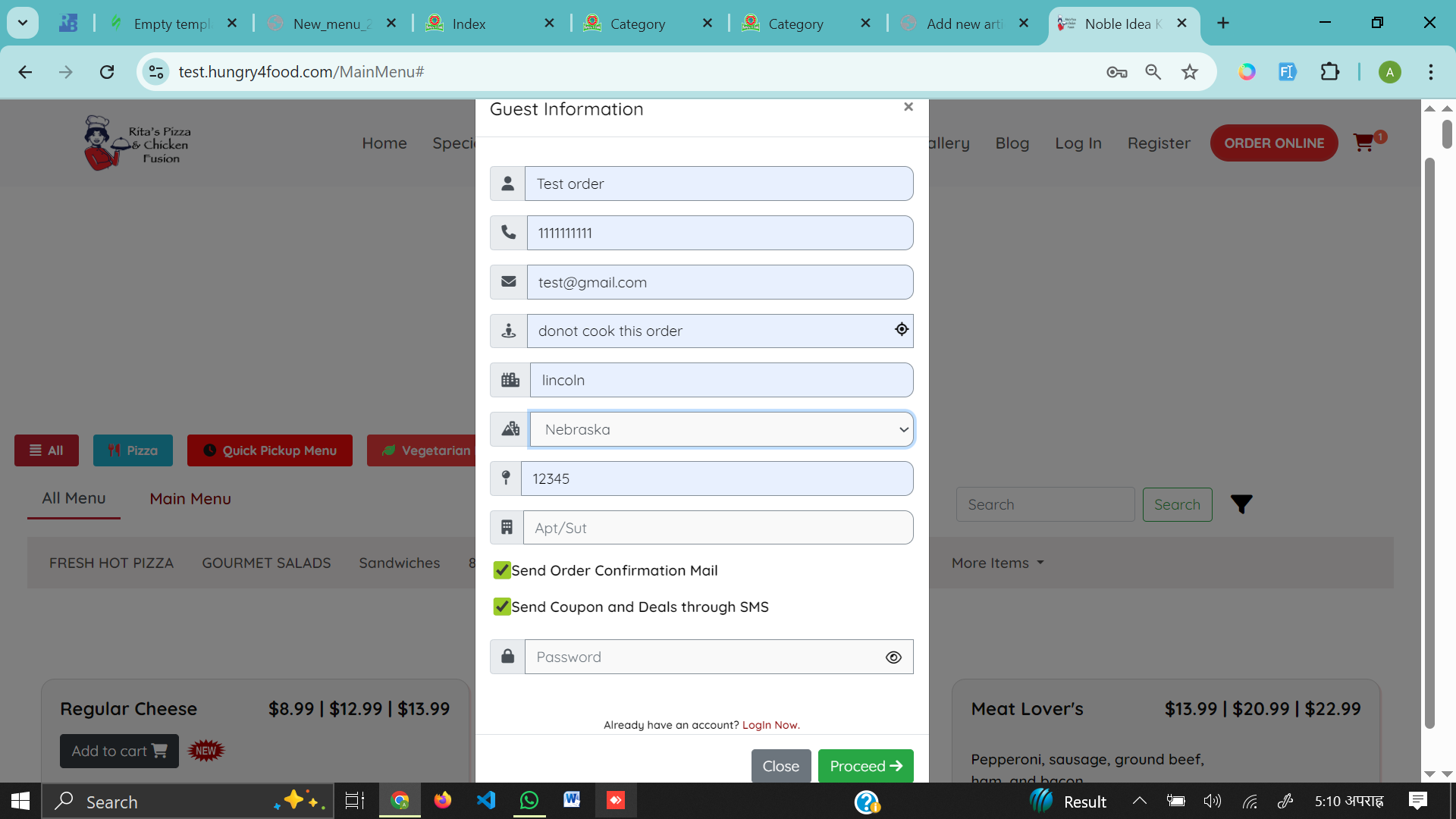
3.Add the guest info and proceed.
4. Choose make payment option> proceed to payment> Pay on delivery
5.Now the bill is printed on the printer .